What Should You Inspect Before Buying a Secondhand Laptop? Complete Used Laptop Buying Checklist (2026)
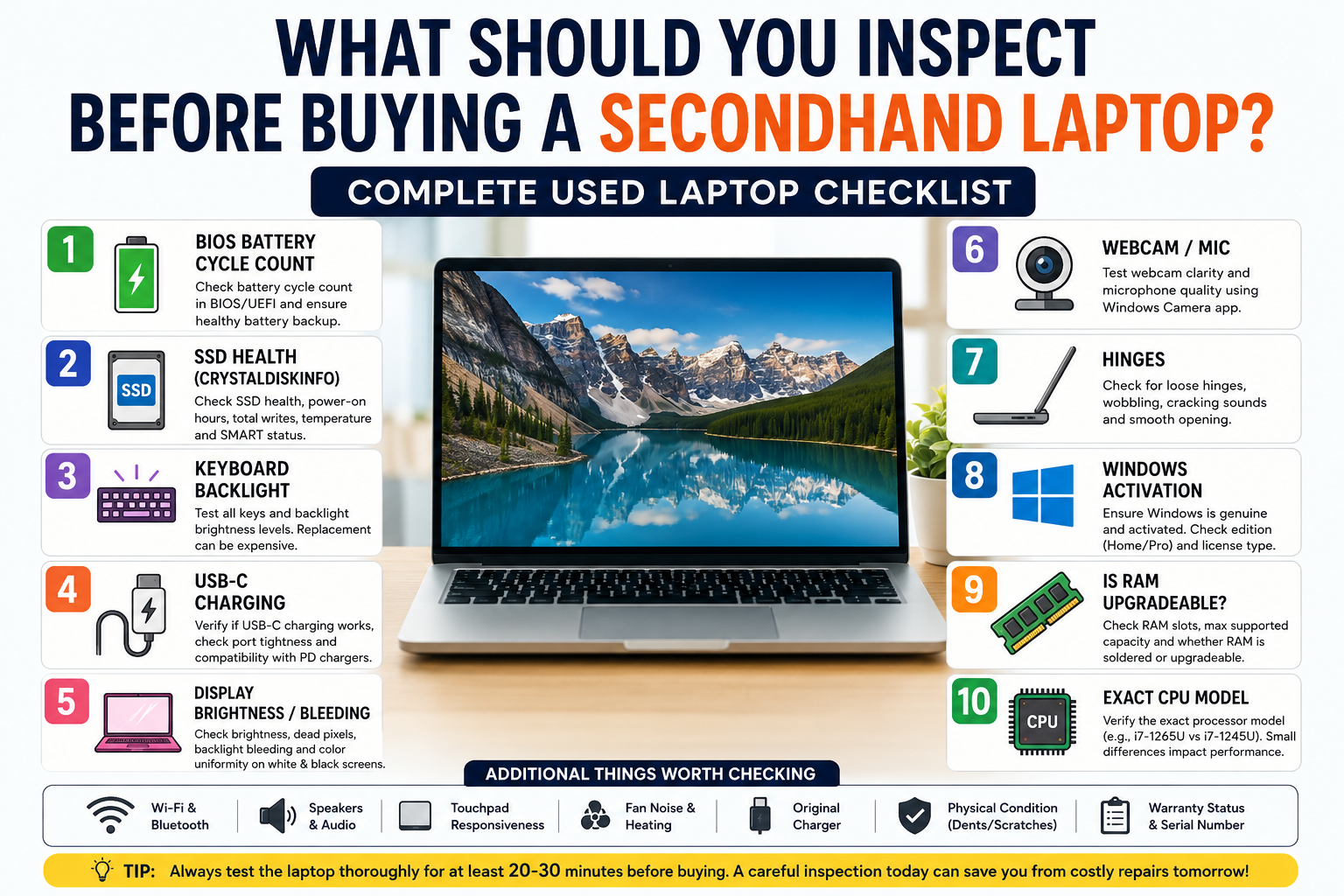
What Should You Inspect When Buying a Secondhand Laptop?
A secondhand laptop can be one of the smartest technology purchases you make. Business-class laptops that originally cost ₹80,000 to ₹1,50,000 are often available in the used market for a fraction of their original price. Many of these machines still offer excellent performance for office work, programming, online classes, accounting, browsing, content creation, and even light gaming.
However, buying a used laptop without proper inspection can also become an expensive mistake.
A laptop may look perfectly clean externally while hiding:
- A failing SSD
- Weak battery
- Loose hinges
- Fake Windows activation
- Overheating issues
- Damaged ports
- Non-upgradeable RAM
- Replaced low-quality components
This guide explains the most important things you should inspect before purchasing a secondhand laptop.
1. Check Battery Health and BIOS Battery Cycle Count
The battery condition tells you a lot about how heavily the laptop has been used.
Most premium laptops maintain internal battery statistics inside BIOS or UEFI firmware.
What Is Battery Cycle Count?
A battery cycle represents one complete charge-discharge cycle.
For example:
- Charging from 50% to 100% = half cycle
- Using from 100% to 50% = another half cycle
Together they equal one full cycle.
Over time, lithium-ion batteries naturally degrade. Higher cycle counts usually mean lower battery backup.
How to Check BIOS Battery Cycle Count
Method 1 — Through BIOS/UEFI
Steps:
- Shut down the laptop
- Turn it ON
- Immediately press:
- F2 (common in Dell laptops)
- F1/F12 (common in Lenovo ThinkPads)
- ESC or F10 (common in HP laptops)
- Enter BIOS setup
- Navigate to:
- Battery Information
- Diagnostics
- Power Management
- Health Section
Look for:
- Cycle Count
- Battery Health
- Full Charge Capacity
- Remaining Capacity
Battery Cycle Count Guidelines
Usually considered:
- Below 200 cycles → Excellent
- 200–400 cycles → Good
- 400–600 cycles → Moderate wear
- Above 600 cycles → Battery replacement may soon be required
Some enterprise laptops remain usable even after 700+ cycles, but battery backup reduces significantly.
Also Check:
- Whether charging works properly
- Whether battery drains quickly
- Whether laptop suddenly shuts down
- Swelling near bottom panel
Battery replacement for premium ultrabooks can be expensive.
2. Inspect SSD Health Using CrystalDiskInfo
This is one of the most important inspections when buying a used laptop.
The SSD stores:
- Windows
- Applications
- Personal files
- Documents
- Photos
- Business data
A failing SSD can cause:
- Slow performance
- Freezing
- Blue screen crashes
- File corruption
- Sudden data loss
Use CrystalDiskInfo
Experienced buyers often use:
- CrystalDiskInfo
This free tool reads the SSD’s internal SMART data and reveals the actual condition of the drive.
What CrystalDiskInfo Shows
1. SSD Health Percentage
Typical interpretation:
- 100% → Excellent
- 90–99% → Very good
- 70–89% → Moderate wear
- Below 70% → Significant usage
- Below 50% → Heavy wear
Lower health percentages indicate higher SSD wear.
2. Power-On Hours
This shows how long the SSD has operated.
Example:
- 2,000 hours → Light use
- 10,000 hours → Moderate use
- 25,000+ hours → Heavy usage
High power-on hours are common in office laptops used continuously for years.
3. Total Host Writes
This indicates how much data has been written to the SSD during its lifetime.
Heavy workloads like:
- Video editing
- Virtual machines
- CCTV recording
- Rendering
- Development work
can rapidly increase SSD wear.
4. SSD Temperature
Normal SSD temperature:
- 30°C–50°C → Healthy
- Above 70°C → Potential issue
Excessive heat may indicate:
- Dust accumulation
- Poor ventilation
- Heavy prior usage
5. SMART Warnings
Avoid laptops showing:
- “Caution”
- “Bad”
- Reallocated sector warnings
- Read/write failures
These indicate possible SSD failure.
Important Tip: Verify SSD Brand
Sometimes sellers replace original SSDs with cheaper low-quality drives before resale.
Reliable SSD manufacturers include:
- Samsung
- Western Digital
- Kingston Technology
- Crucial
- SK hynix
Unknown SSD brands may have lower reliability.
3. Check Keyboard and Keyboard Backlight
Laptop keyboards are expensive to replace, especially in premium ultrabooks.
Test:
- Every individual key
- Backlight brightness levels
- Sticky keys
- Double typing issues
- Function keys
Liquid damage often first affects keyboards.
4. Verify USB-C Charging and Ports
Modern laptops increasingly support USB-C charging.
Check:
- Whether USB-C charging works
- Loose charging ports
- Fast charging support
- Data transfer
- HDMI functionality
- USB-A ports
- Audio jack
Loose or damaged ports may require motherboard-level repair.
5. Inspect the Display Carefully
Display replacement is one of the most expensive laptop repairs.
Test for:
- Dead pixels
- White spots
- Yellow tint
- Flickering
- Uneven brightness
- Backlight bleeding
Open:
- White background
- Black background
- Red/Green/Blue solid colors
to inspect the panel thoroughly.
6. Test Webcam and Microphone
Important for:
- Online meetings
- Remote work
- Online classes
Verify:
- Camera clarity
- Microphone volume
- Speaker quality
- Noise issues
- Camera detection
Use the built-in Windows Camera app.
7. Carefully Inspect Hinges
Hinge damage is extremely common in secondhand laptops.
Warning Signs:
- Cracking noises
- Tight opening
- Loose wobbling
- Frame separation
- Uneven movement
Repeated hinge stress can eventually damage the laptop body.
8. Verify Windows Activation
Many used laptops are sold with unofficial Windows installations.
Check:
Settings → Activation
Ensure:
- Windows is activated
- Genuine license exists
- Correct edition installed
Common editions:
- Windows Home
- Windows Pro
Business users may prefer Pro edition.
9. Check Whether RAM Is Upgradeable
Many modern ultrabooks use soldered RAM.
This means:
- RAM cannot be upgraded later
Verify:
- Number of RAM slots
- Maximum supported RAM
- Dual-channel support
- Whether RAM is replaceable
Upgradeable RAM increases laptop lifespan significantly.
10. Confirm the Exact CPU Model
Never trust vague descriptions like:
- “i7 laptop”
- “12th Gen”
Always confirm the exact processor.
Example:
- Intel Core i7-1265U
- Intel Core i7-1245U
Even similar-looking processors may differ in:
- Performance
- Battery efficiency
- Business features
- vPro support
- Graphics capability
Verify Using:
- BIOS
- Task Manager
- CPU-Z
Also check:
- Generation
- Core count
- Thread count
- Base frequency
Additional Things Worth Inspecting
Before payment, also test:
- Wi-Fi
- Bluetooth
- Touchpad
- Speakers
- Charger originality
- Fan noise
- Heating under load
- Physical dents
- Rubber feet condition
- Warranty status
- Serial number authenticity
Which Used Laptop Brands Usually Age Well?
Business-class laptops generally last longer than consumer models.
Popular durable series include:
- Lenovo ThinkPad
- Dell Latitude
- HP EliteBook
- Apple MacBook Pro
These models usually offer:
- Better keyboards
- Stronger hinges
- Easier repairs
- Better cooling
- Higher reliability
Final Thoughts
A carefully selected secondhand laptop can deliver excellent value for students, freelancers, startups, office users, and small businesses.
However, cosmetic appearance alone is not enough. A laptop that looks clean externally may still have:
- A worn-out SSD
- Weak battery
- Hidden motherboard issues
- Display problems
Always spend time properly inspecting the machine before buying.
A 20-minute inspection today can save thousands of rupees in future repair costs.
Focus Keywords
- secondhand laptop checklist
- used laptop buying guide
- how to check laptop battery health
- CrystalDiskInfo SSD health
- used laptop inspection tips
- laptop BIOS battery cycle count
- check SSD health before buying laptop
- used business laptop guide
- laptop buying tips India
- secondhand laptop inspection checklist